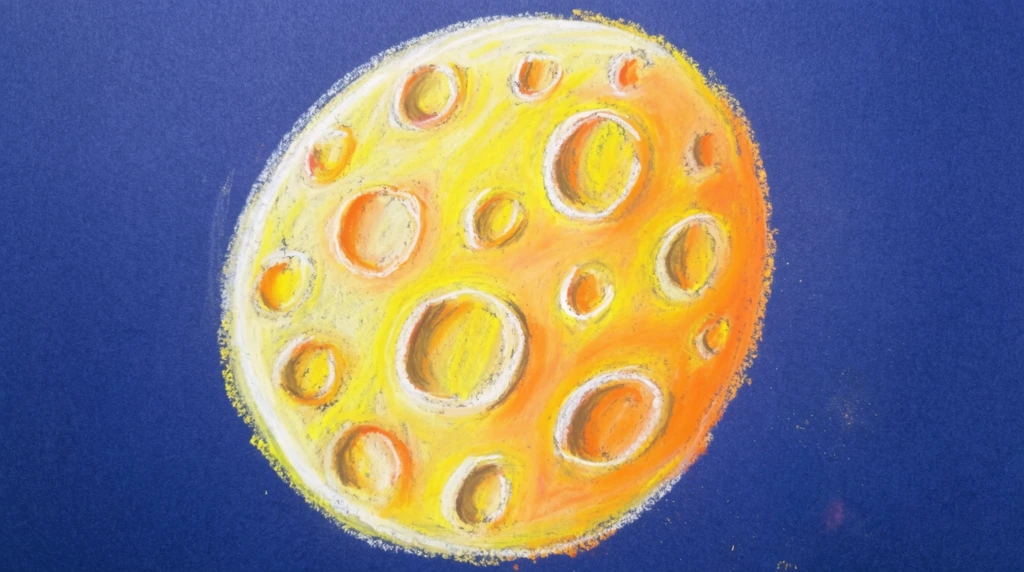
"All right. Time of creativity." That's how this drawing session kicks off — and this time Eon wants to draw the Moon. Not a cartoon moon, but a realistic one. So the first question is the one every artist has to ask: what does the real Moon actually look like? "If you look at the moon in the sky," they say, "it's a realistic moon" — pale, round, and covered in bumps. Eon is drawing on a tablet with an AI art tool that turns his sketch into a finished picture, and getting it right takes more than one try.
First, make the whole thing white
Before any craters, there's a rule: "first, we need to draw the entire thing white." You build the Moon in layers — start with a plain white circle, then add the details on top. So Eon sets the color to white and tries to draw a circle.
It doesn't go smoothly at first. The stylus won't draw: "Why is it not working?" The fix is pressure — "you need to add a little bit of pressure." Press a touch harder and — "Oh, there we go" — the line appears. Then the circle comes out a little small, so they go again to "give it more mess" (more mass, more size): "One, two, three. And there we go." It's not perfect and it's not round yet, but the white Moon is on the screen. That's a real lesson by itself: the first try is rarely the final try, and that's normal.
The artist's secret: a crater is just a shadow
Now the big idea. The Moon is covered in craters — round dents — so how do you draw a dent on a flat circle? You don't draw a hole. Eon explains the trick: "The crater basically is just adding a bunch of shadow."
Shadow creates depth. A little dark shading on one side of a circle, and your eye suddenly reads it as a 3D pit. Light and dark turn a flat shape into something round and real.
He points to a spot — "here, this is a crater" — adds shading, and a believable crater appears: "Now you get a crater like this, right here. That big." He keeps nudging it to look better, trying to "make it more circle" because at one point it's "not even circle-ish." Round shape plus shadow equals a Moon that looks genuinely rocky.
Telling the AI tool to stay close to your drawing
Here's a clever moment about using the tool well. The AI keeps changing his picture too much — "Why is it changing?" The fix isn't to draw harder; it's to adjust a setting. Eon turns the "generation" strength down so the result stays "similar to whatever you are drawing." Less AI freedom means more of his Moon survives. When he wants it sharper and more detailed, he does the opposite and increases the strength — "a realistic moon, full of craters." Knowing which slider to move, and which way, is its own skill.
There's even a friendly science debate about color. One of them says the real Moon is "kind of yellowish," and the other insists: "No, it's white. It's white." (Both have a point — the Moon is mostly pale grey-white, and can look faintly yellow low in the sky.) Eon settles it by changing the color himself in the tool. And about those craters: real space rocks crashed into the Moon to make them — and real people have been there. As they remember in the video, "do you remember Apollo 11 landing on the moon?" — the mission that carried the first astronauts to its surface.
Try it
Grab a pencil and draw a plain circle. Now shade just one side of a small spot inside it, darker. Watch that spot stop looking like a dot and start looking like a dent — a crater. Add a few more, each shaded on the same side, and you've got a Moon. That's the whole secret Eon used: a crater isn't a hole you draw, it's a shadow you add.